1. Ask for the script first
Set up the generation the usual way, as in How to Generate AD for Your Video: add your videos, choose AD Audio or AD Video, then pick the language, the voice, and any custom instructions. Below the output cards, above Settings, check Review script before rendering. For AD Audio, check Review script before creating audio. Keep your final output selected; you do not need to switch to AD Script. Then click Generate. ViddyScribe prepares the script and waits for your review. The total price stays the same, and there is no second workflow dialog. Your selected voice is included; AD Video also includes its first render.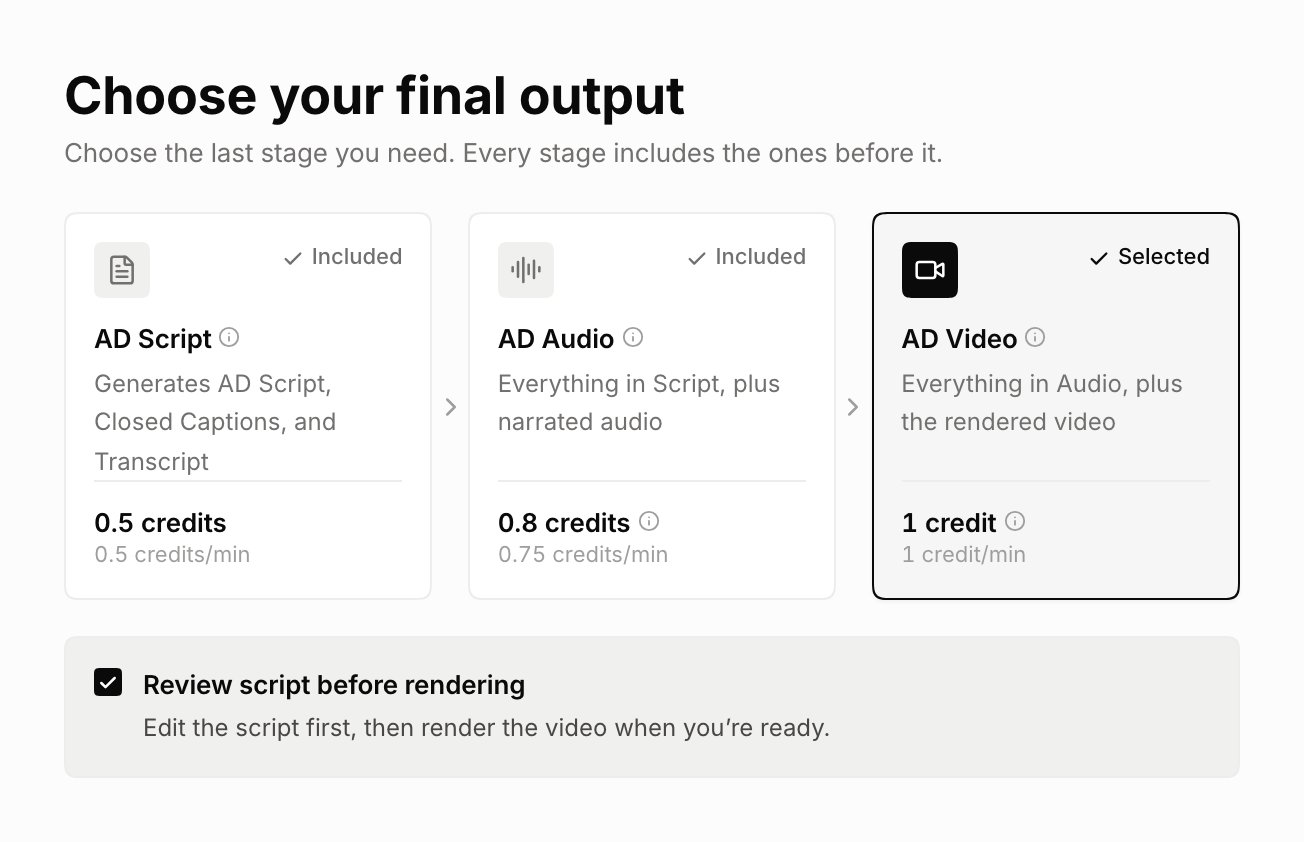
2. Open the editor
When the script is ready, the video in your Library shows Review & render (or Review script for AD Audio). Click it to open the editor. The editor needs a computer or tablet, not a phone. For a video you have already finished, open it and click Edit instead. Happy with the script as it is? Click Render as-is (or Export audio) on the same card to skip the editor and use the script as generated.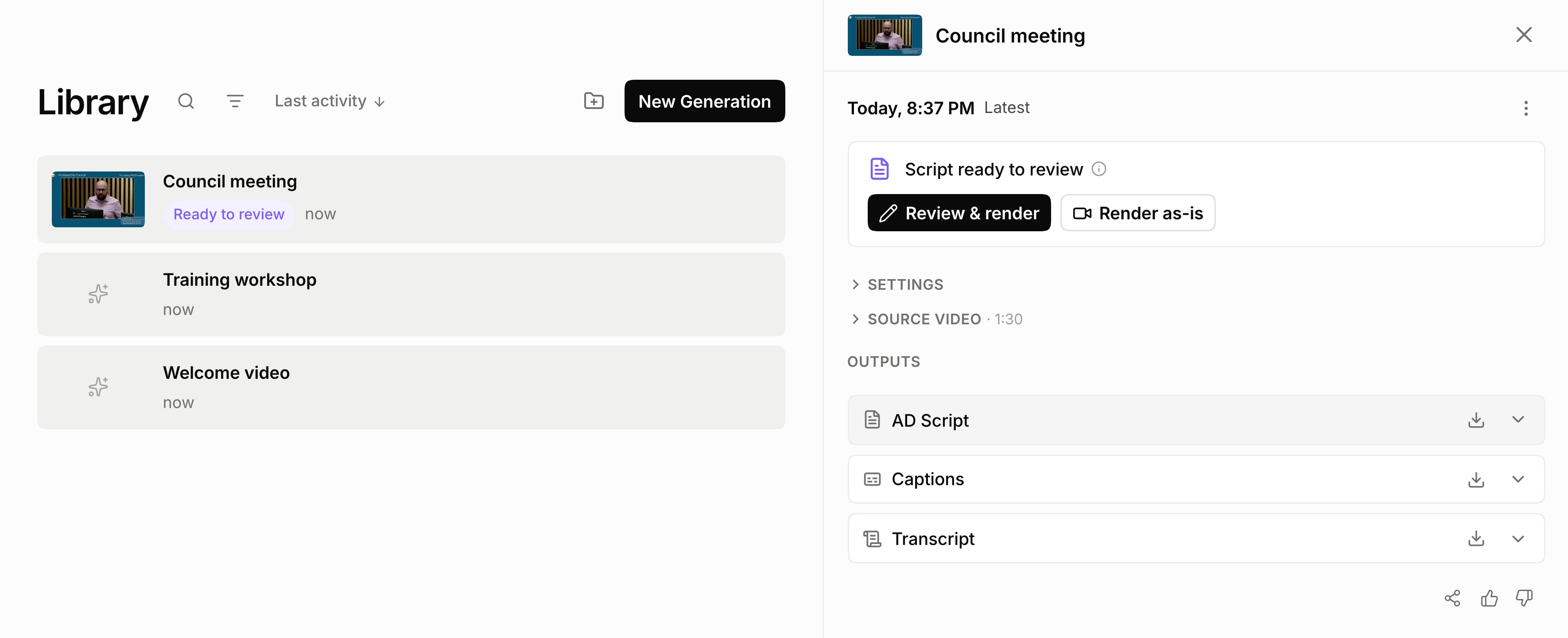
3. Edit the descriptions
Change the words and timing
Play the video and read along in the AD Script tab. Click any description to change its words or timing. Add or delete descriptions as needed. Edit captions the same way in the Captions tab.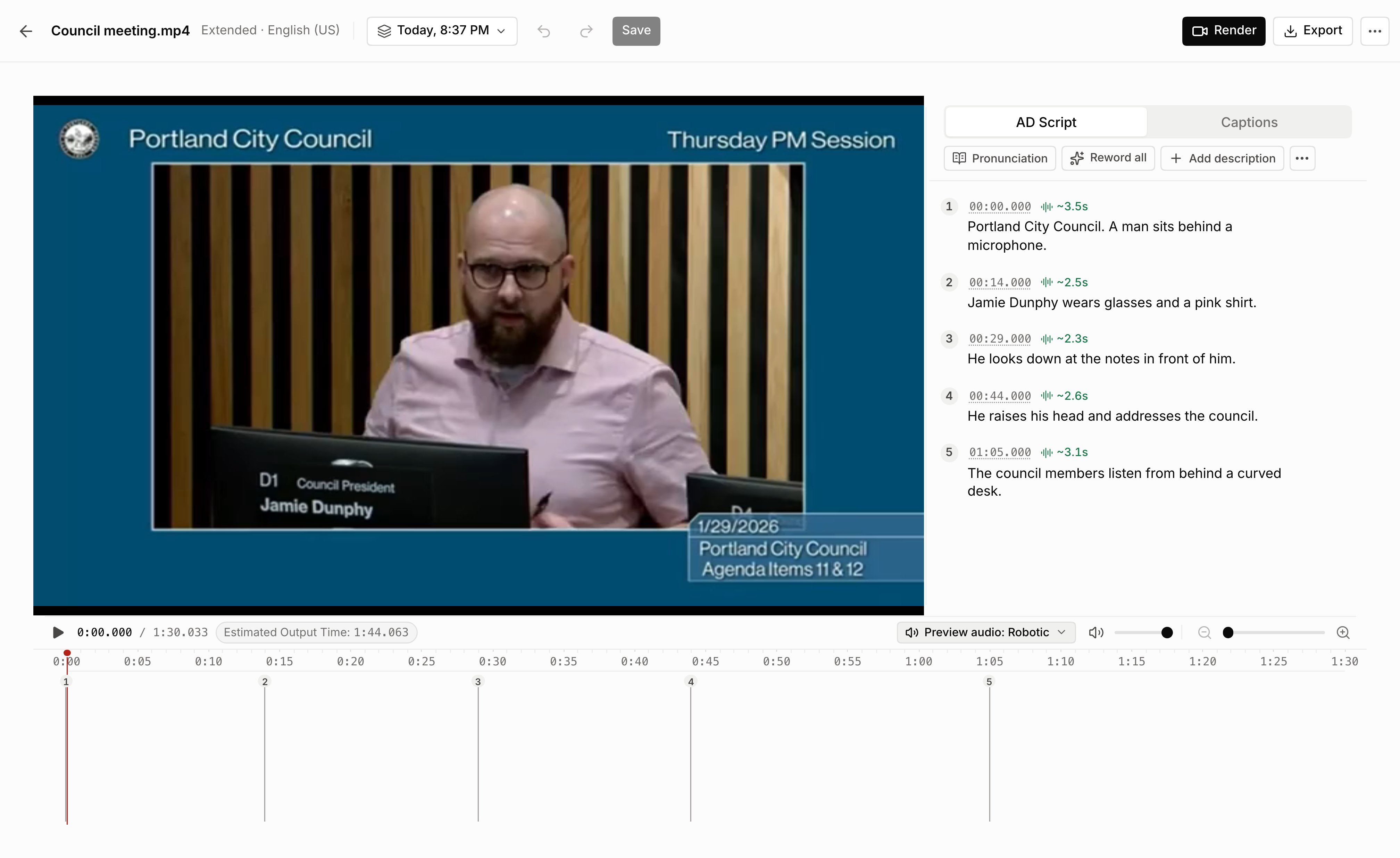
Let AI write it
Write the changes yourself, or let AI do it. Click Edit with AI, pick Shorter or Neutral tone or type your own instruction, then click Reword. On a description you have just added, the same button says Generate with AI and writes one from the video. If a name is said wrong, add it to the Pronunciation dictionary.Hear how it sounds
To check your work, play the video. Anything you have just changed is read by a free robotic voice, which is enough for judging the timing and the words. To hear it in the real voice, open the voice menu and click Use this voice. The voice you picked when you generated is included, so that costs nothing. A different voice costs 0.25 credits per minute of video, and the editor shows the price before you confirm. If you create audio first, you do not pay for that same voice again when you make a video from the same version, language, and AD type. You pay only any video-render charge shown. An unused first render from an AD Video generation is included. Check the exact quote before confirming.4. Render
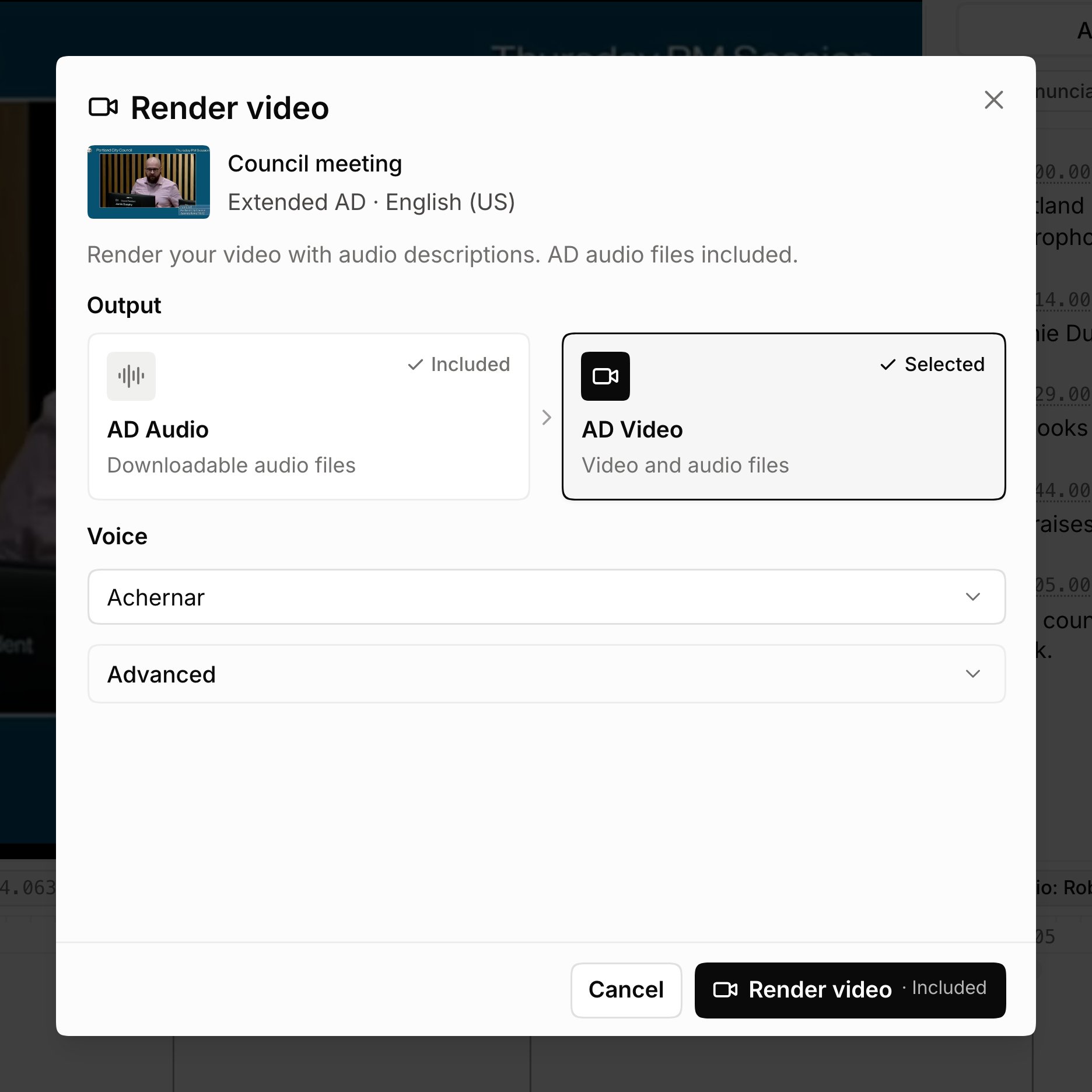
Click Save version, then Render. Choose AD Video to render your video with audio descriptions (AD audio files included), or AD Audio to get just the audio files. The result shows up in your Library.